
2026.08 ver.
Glow.B Campaign Common Guideline
We've gathered the 8-step process you must check when running a campaign collaboration, along with the required filming conditions and schedule / review guidance, all in one place.
Notice
If you've been finally selected for a campaign, please complete the steps below in order
All collaboration inquiries are handled via Glow.B's Instagram (@glow.b_kor) and email.(Once selected for a campaign, please direct any questions to the manager listed in your selection notice email.)
- Check the campaign you were selected for
- Sign the contract
- Check the content guideline and submit your script
- Submit the video / caption / hashtags
- Check the brand's feedback and submit the revision
- Upload to your account
- Submit the final deliverables
- Check the payment you received
Please also check the following · Reflect the required filming conditions · Keep to the collaboration schedule · How to check the deliverable types and number of reviews
1️⃣ Check the campaign you were selected for
Once you're selected for a campaign, we'll let you know by email and text message.
Check the campaign
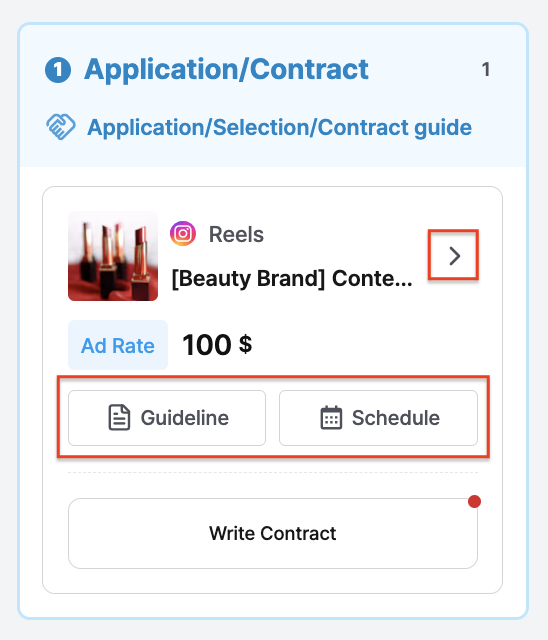
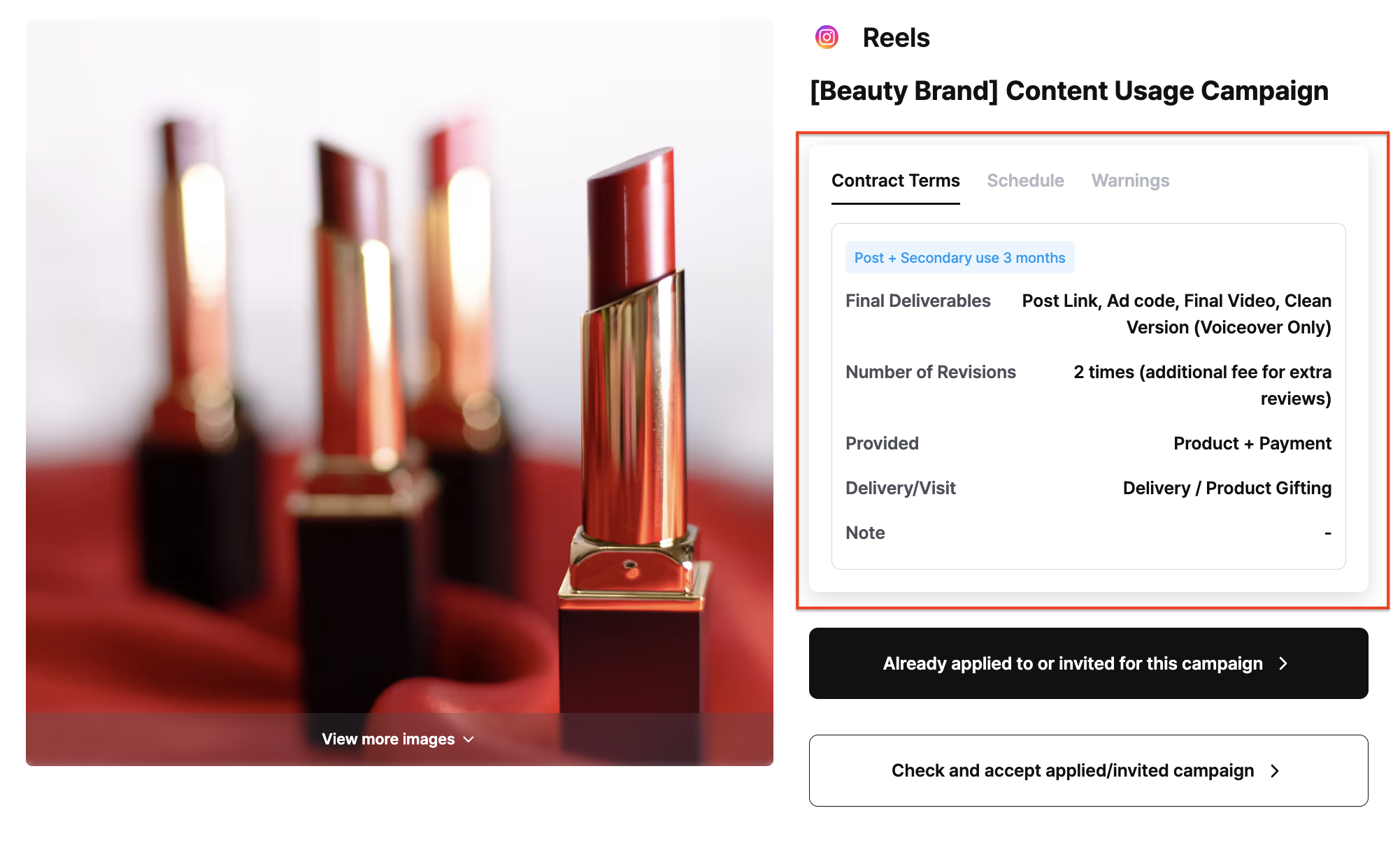
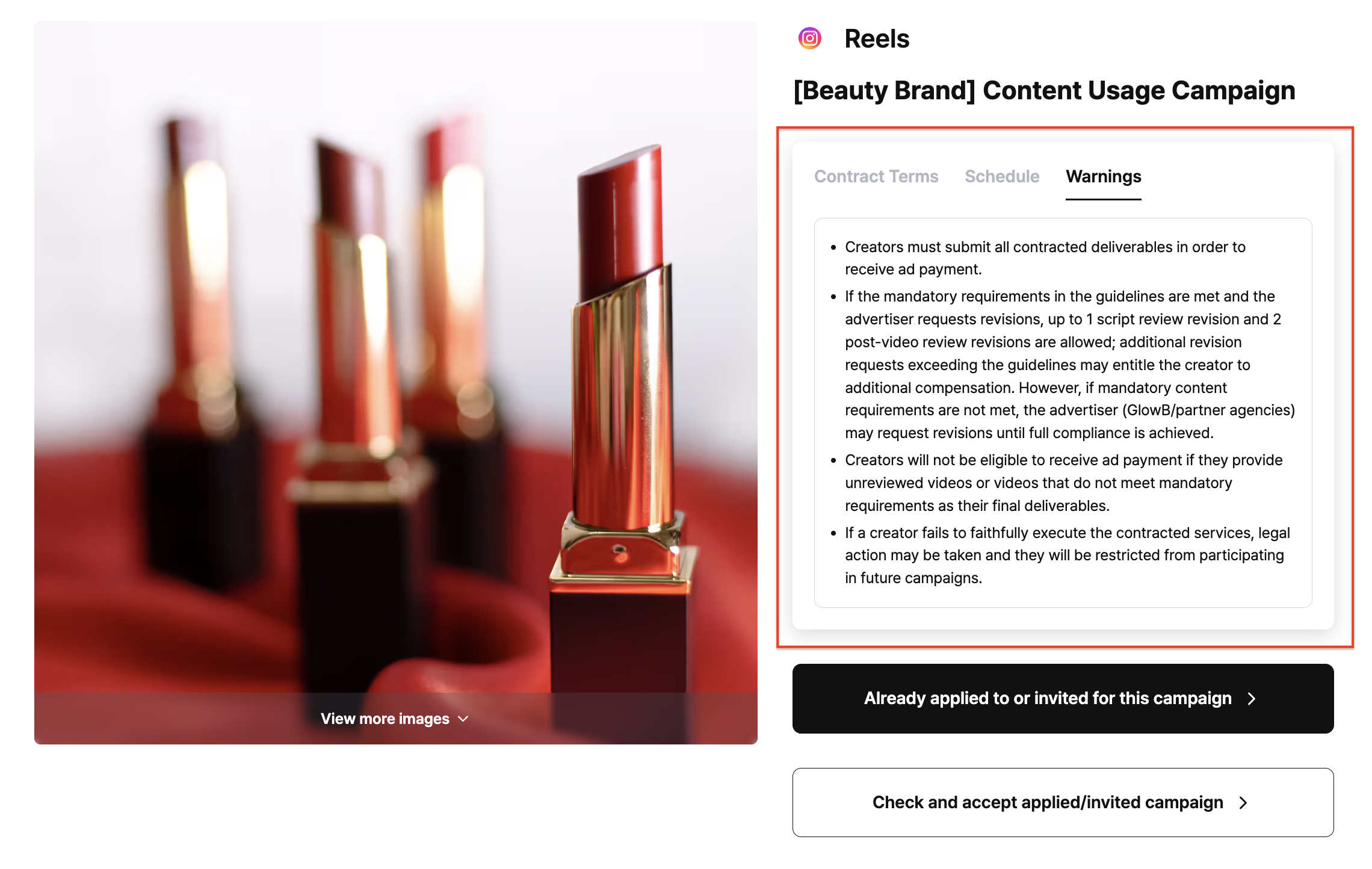
On the Glow.B site, click your profile circle at the top right → Campaign dashboard, and check the ad rate, guideline, schedule, conditions, and cautions of the campaign you were selected for once more. (*How to check the conditions and cautions: click the '>' icon next to the title on the campaign card)
Check the shipping address
For campaigns with product shipping, the product is sent to the address you enter when applying for the campaign. If you entered it incorrectly, please let us know.
2️⃣ Sign the contract
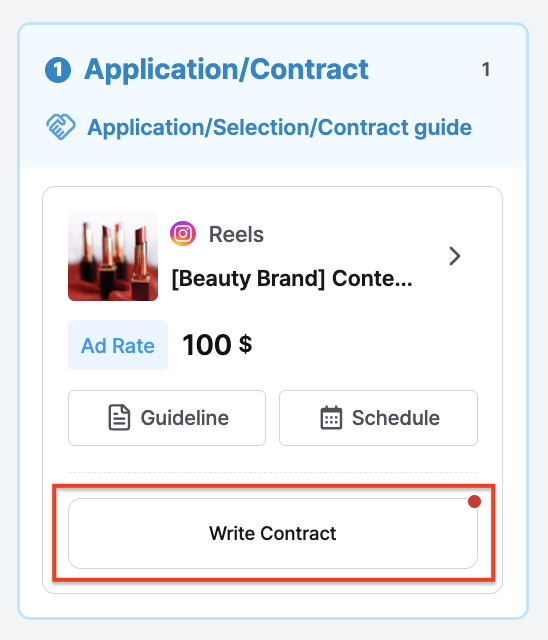
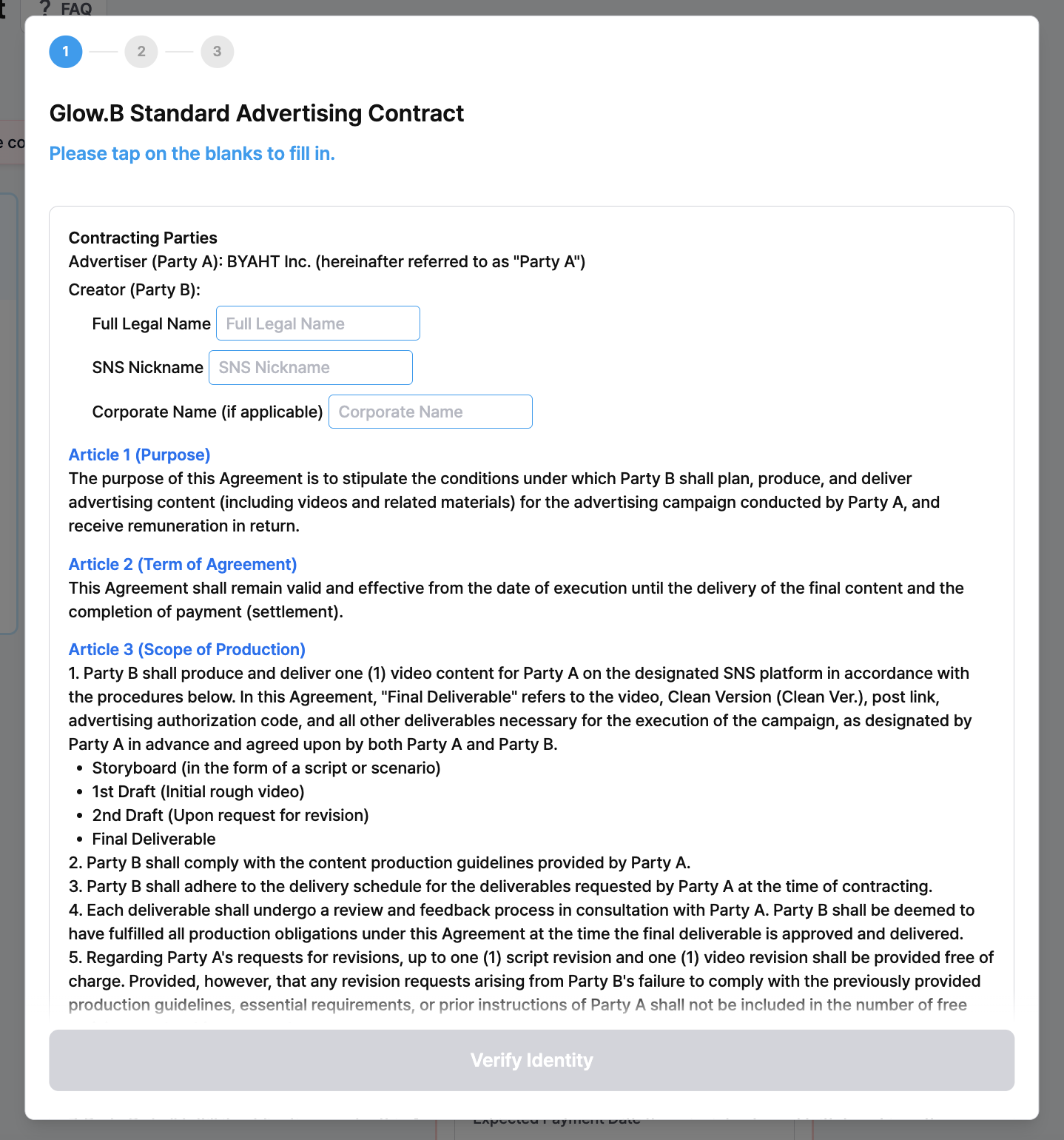
Click the [Write contract] button > proceed with signing the contract.
The campaign starts once the contract is signed, so please complete your signature within 12 hours of us sending you the contract.
- Read the contract, tap the blanks to fill in your information, then click the [Verify identity] button.
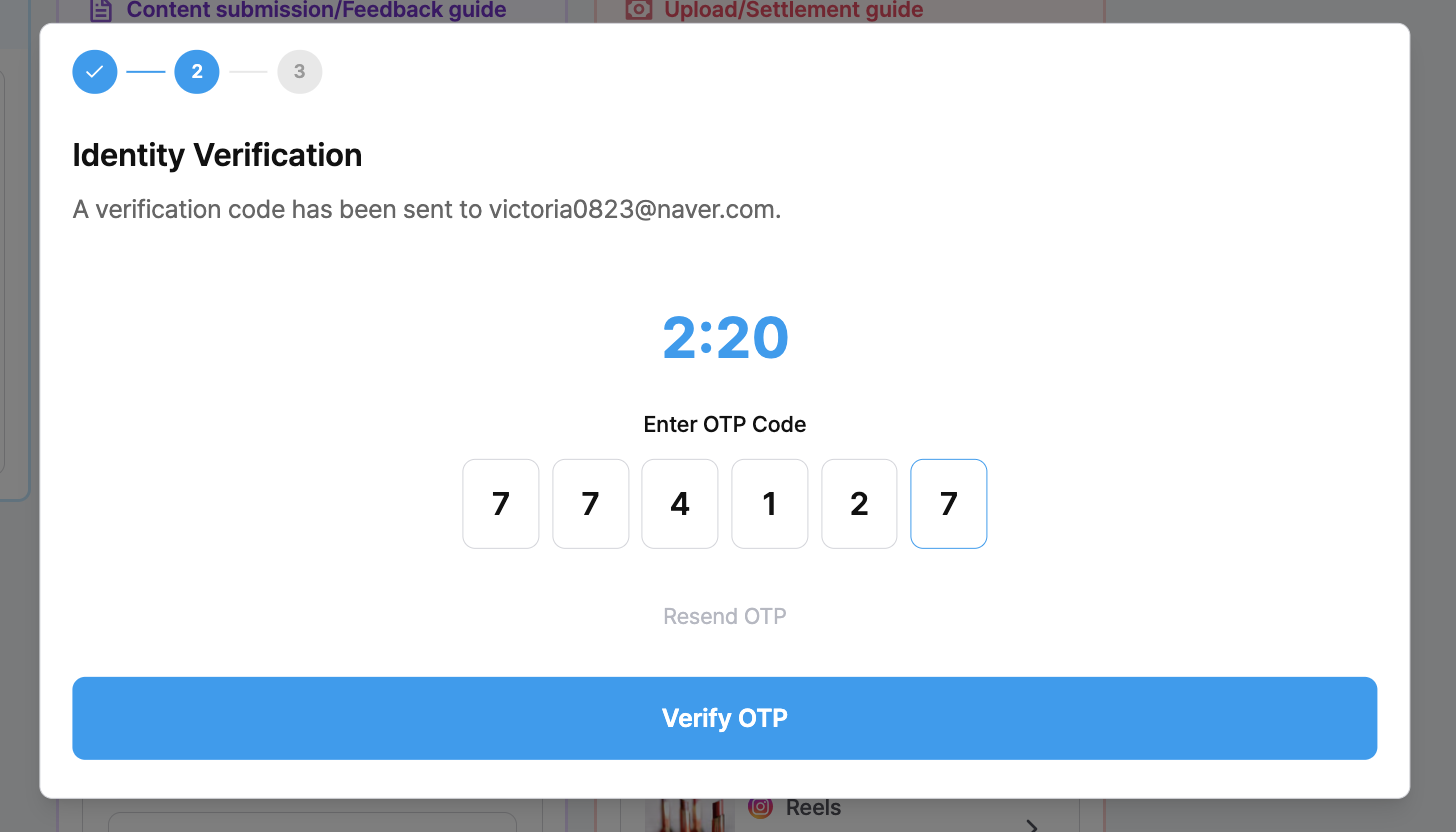
- Enter the verification code sent to your mobile number by text message.
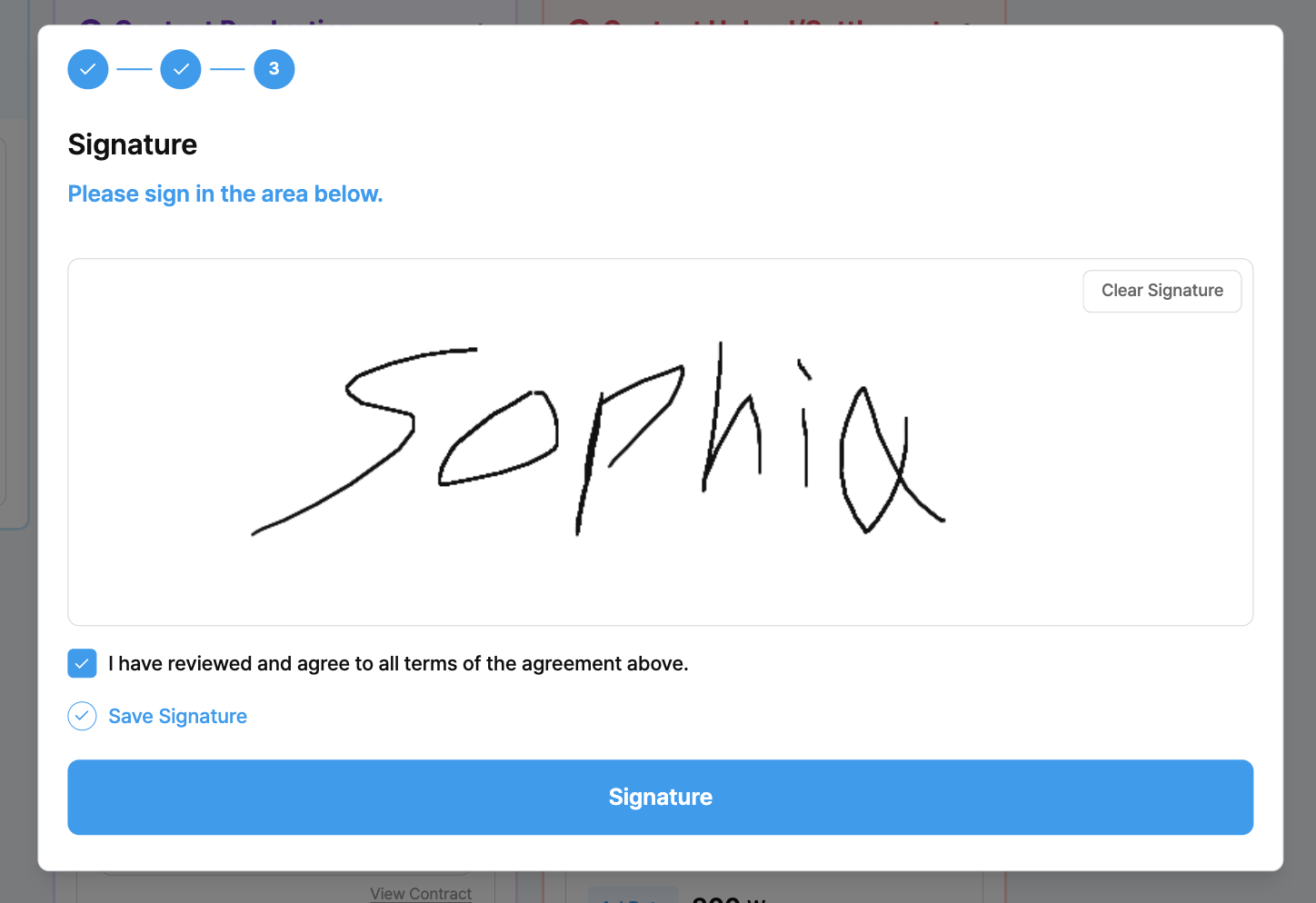
- After signing, press the [Sign] button to complete the contract.
3️⃣ Check the content guideline and submit your script
Script submission applies only to campaigns with 2 rounds of review. Campaigns with 1 round of review do not submit a script separately. You can check the number of reviews under 'How to check the deliverable types / number of reviews' at the bottom of this page.
What is a script?
It's a video script — the scenes and lines of the video you're going to make, organized in text before you start filming.
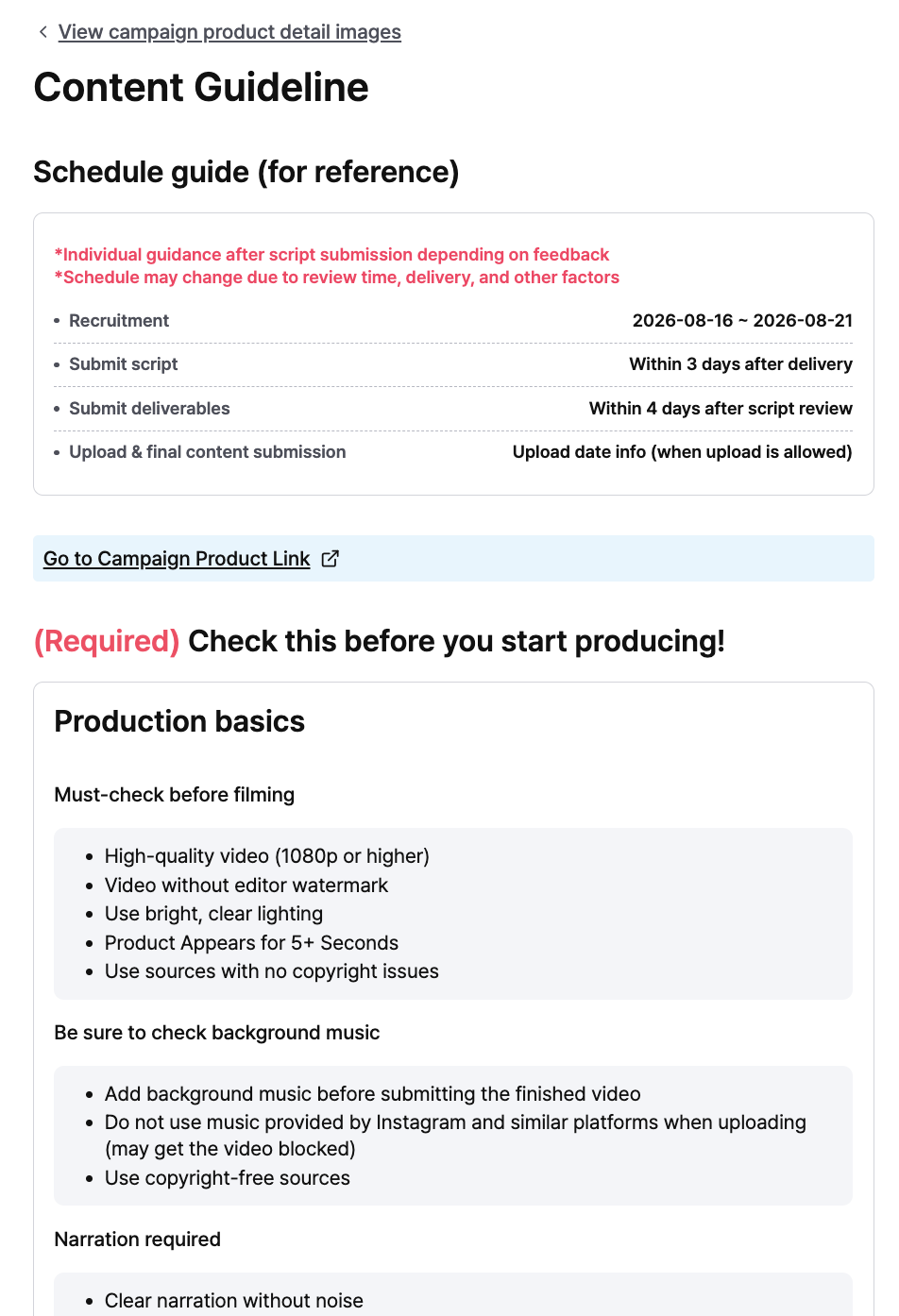
How to view the content guideline
- Method 1) Glow.B site → the thumbnail of the campaign you were selected for → click the [You've already applied to this campaign] button
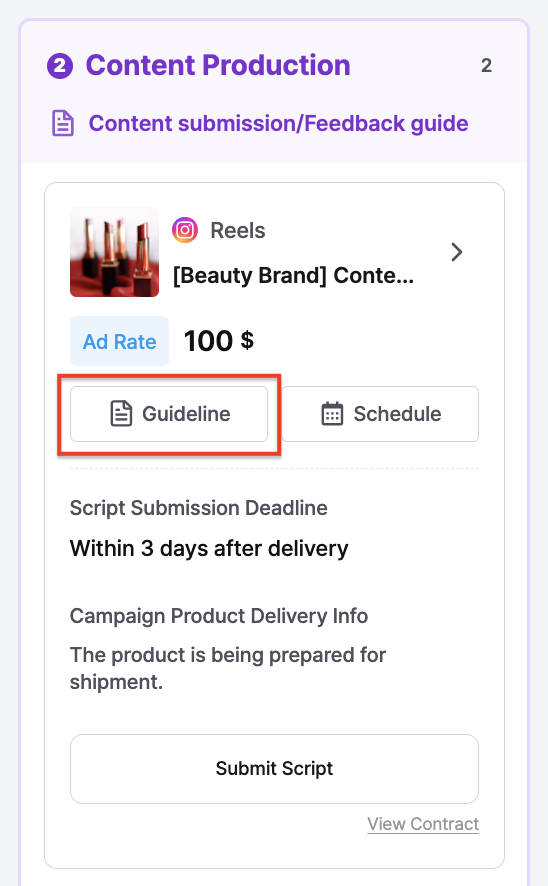
- Method 2) Glow.B site → My campaign dashboard at the top right → click the [Guideline] button on the campaign
‼️ If the guideline isn't reflected, you'll get revision requests, so be sure to check it before you start creating!
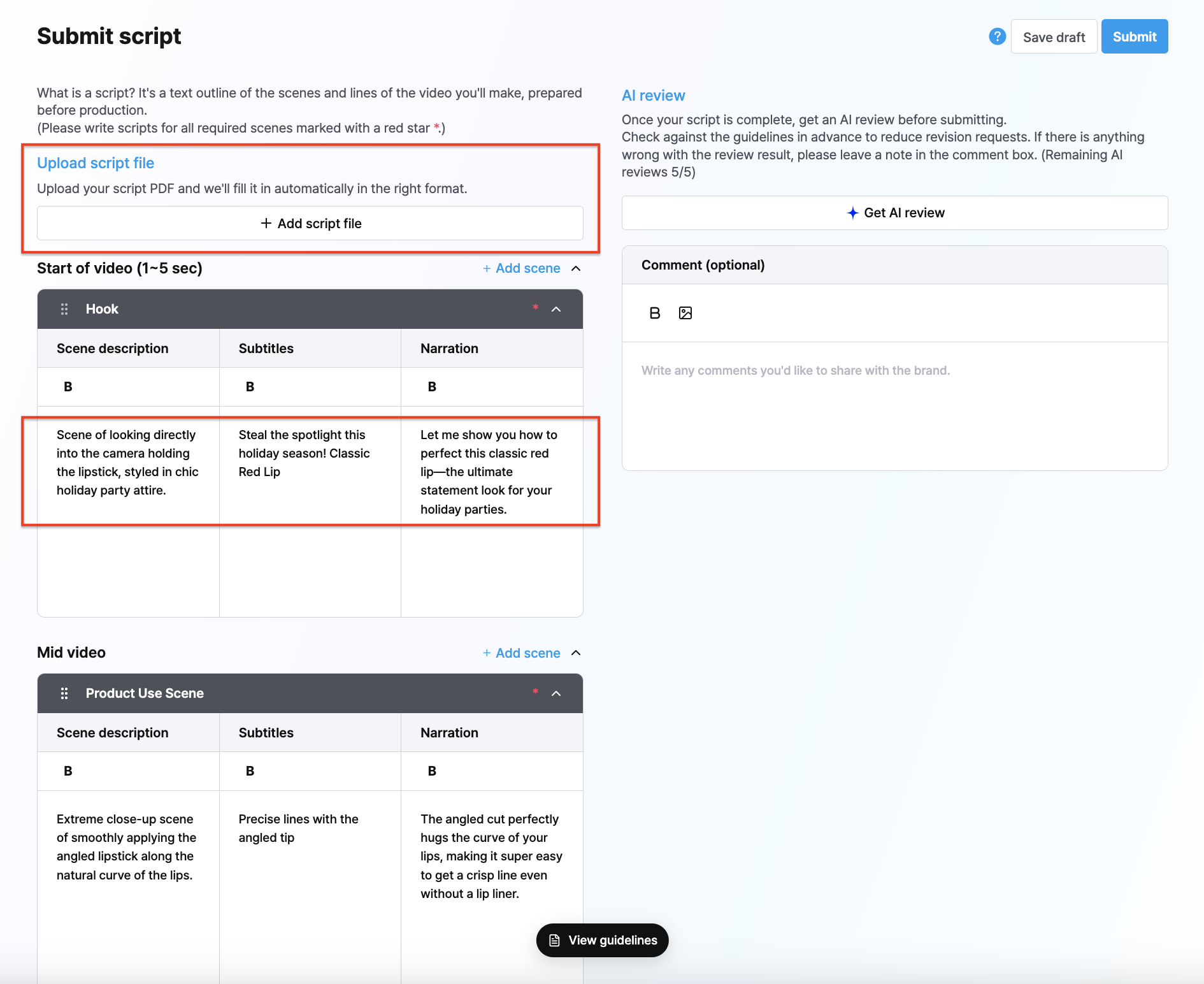
How to write the script
- Press the [Add script file] button and upload your script PDF, and it's filled in automatically according to the format.
- Check the automatically filled content and edit the parts you need to.
- You can also type directly into the text field without uploading a PDF.
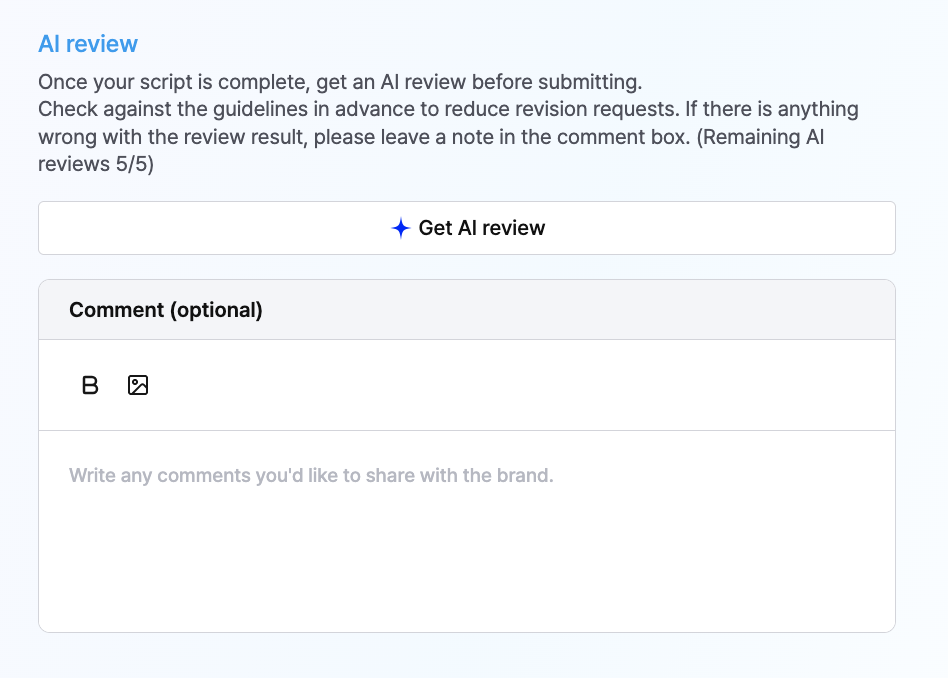
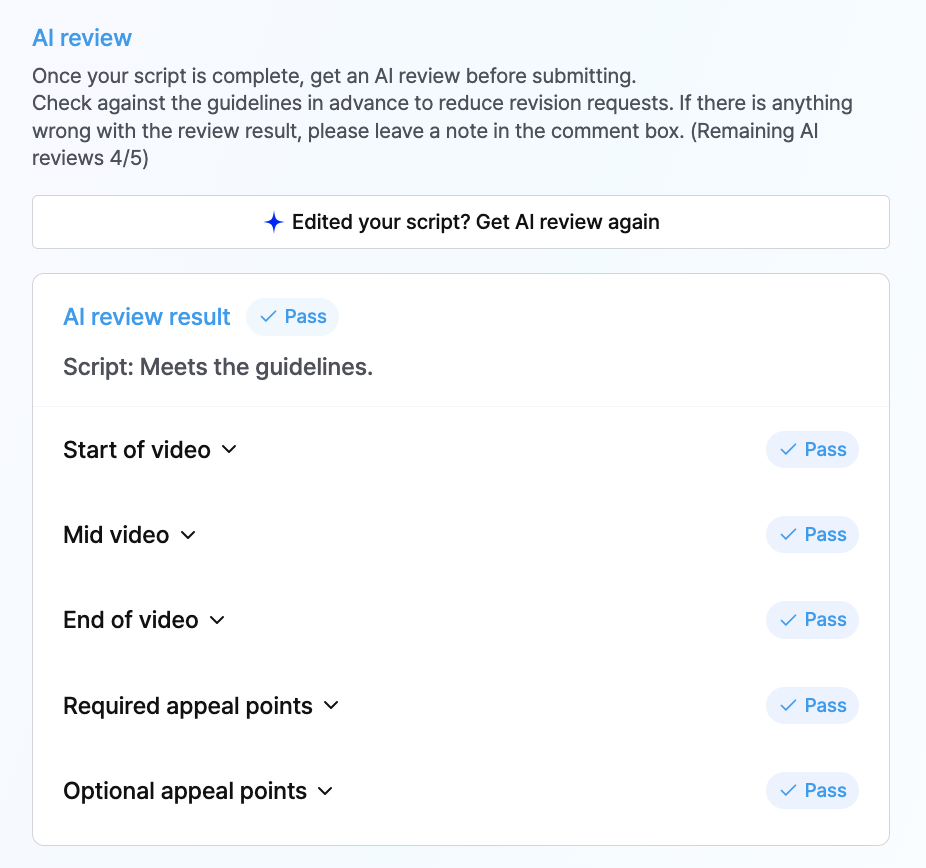
Try an AI review before submitting
- Once you've finished writing your script, click [Get AI review] to check in advance whether it matches the guideline.
- The AI review is free up to 5 times; if you need more after that, it's added one at a time after approval by a Glow.B administrator. ※ Outside operating hours, administrator approval and adding review counts may not be possible.
- If there's an error in the AI review result, please write the details in a comment.
After you submit
After you submit, once the company finishes its review we'll guide you through the next step by email. e.g.)
- No revisions = start creating the video right away
- Simple revisions such as typos = create the video reflecting the feedback right away (no script revision submission)
- Many revisions = submit a script revision
For how to submit a revision, see '5️⃣ Check the brand's feedback and submit the revision'.
4️⃣ Submit the video / caption / hashtags
How to submit
- Click the [Submit video] button on the campaign dashboard and upload your deliverables.
- ‼️ [Important] If there's feedback on your script, please reflect it when creating the video.
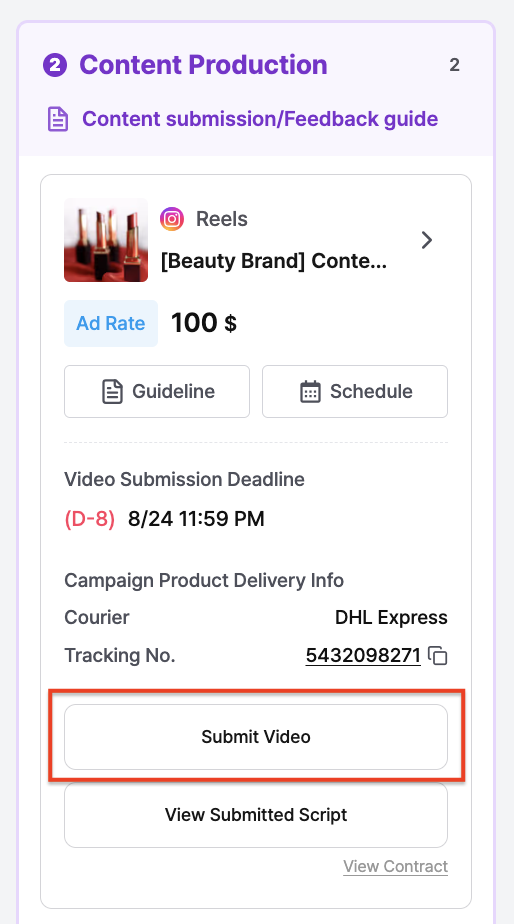
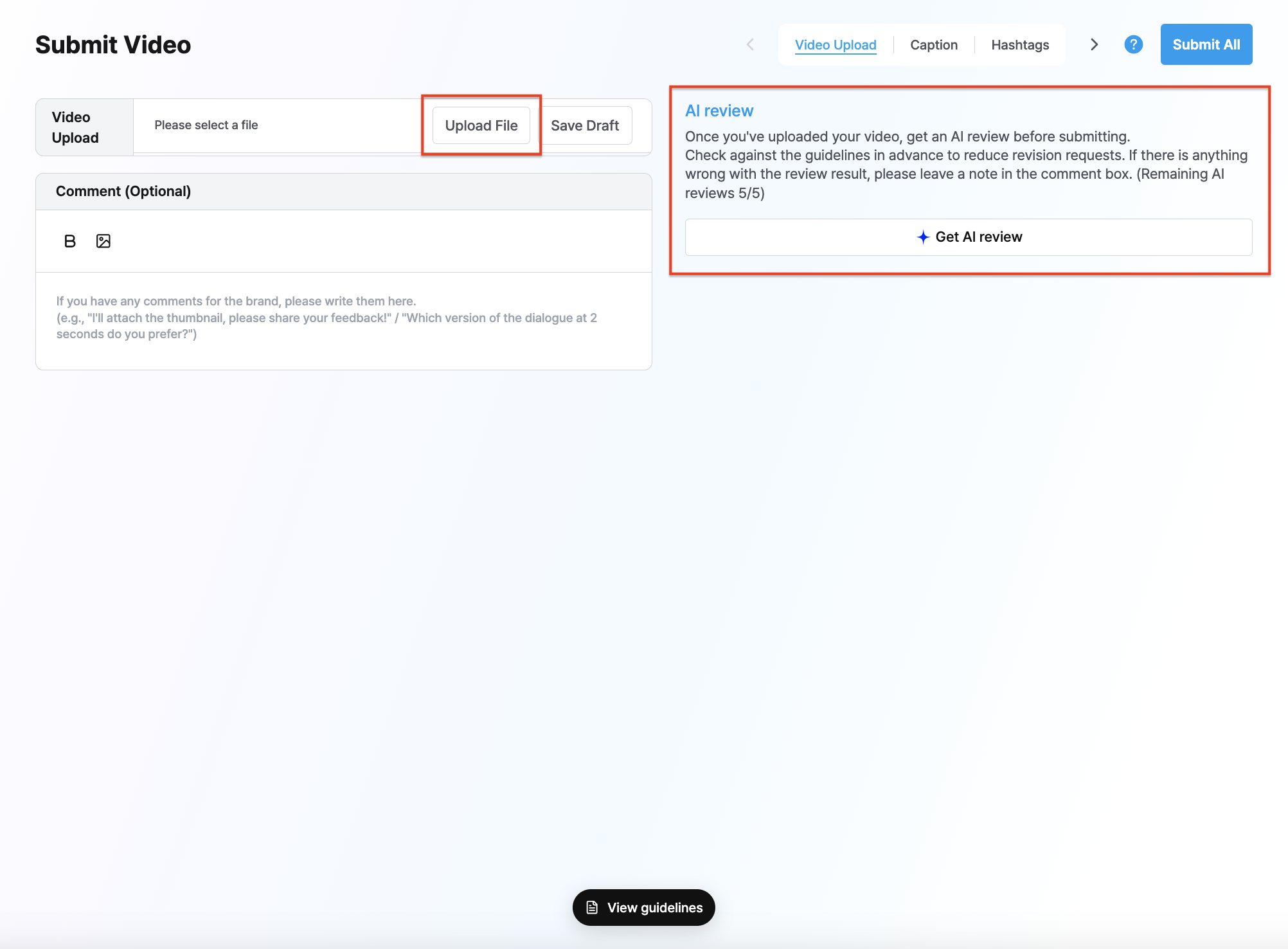
Submit the video
- Click the [Upload file] button and upload your video file.
- Once the video upload is complete, click [Get AI review] to check in advance whether it was made according to the guideline.
- The AI review is free up to 5 times; if you need more after that, it's added one at a time after approval by a Glow.B administrator. ※ Outside operating hours, administrator approval and adding review counts may not be possible.
- If there's an error in the AI review result, please write the details in a comment. e.g.) The video has background music, but the AI review says it doesn't
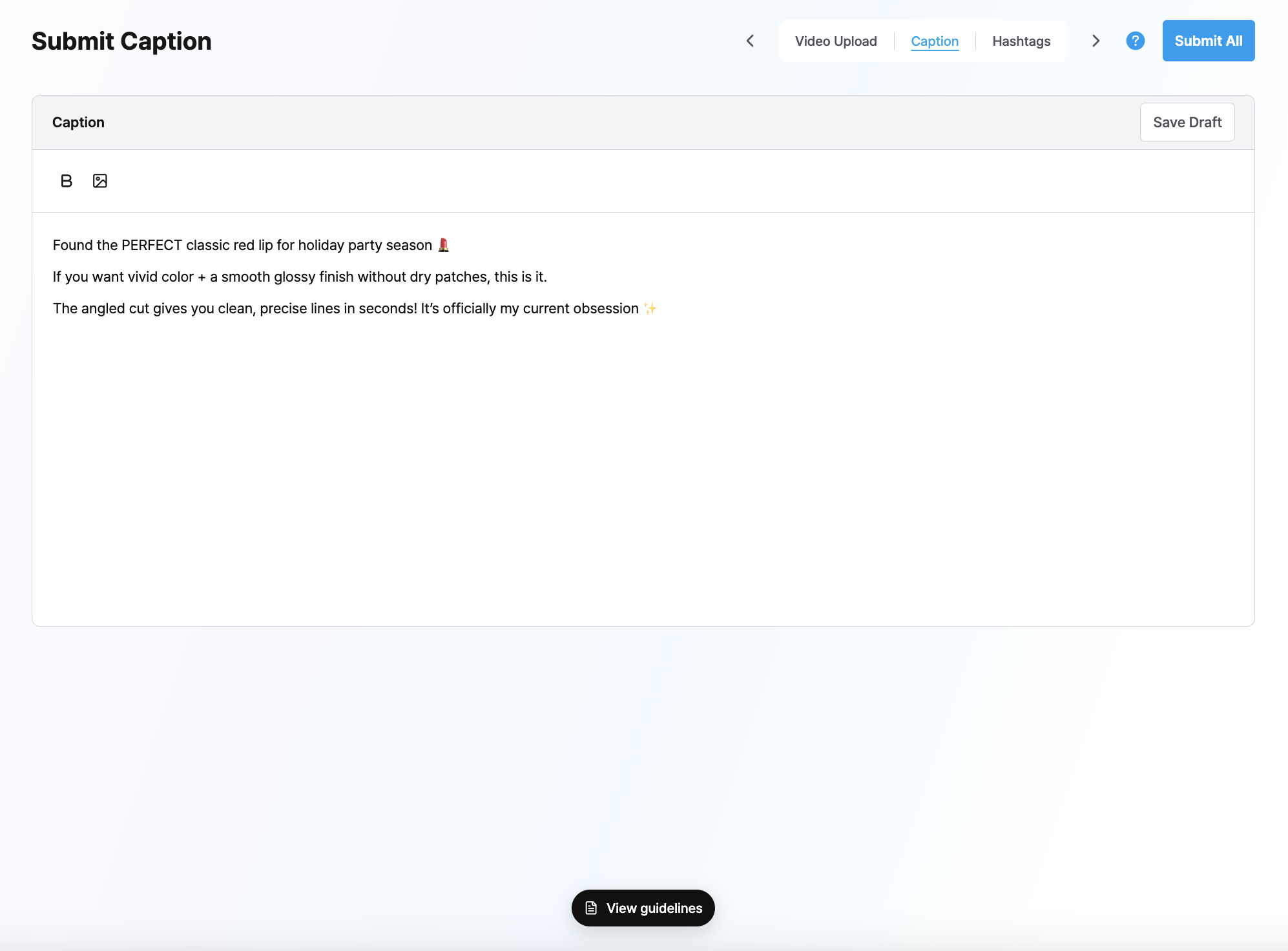
Caption
Please write the caption you'll post along with the video.
Hashtags
Check the required hashtags on the Hashtags tab, and add any hashtags you'd like to include. (However, on Instagram, policy allows only up to 5 hashtags in the caption.)
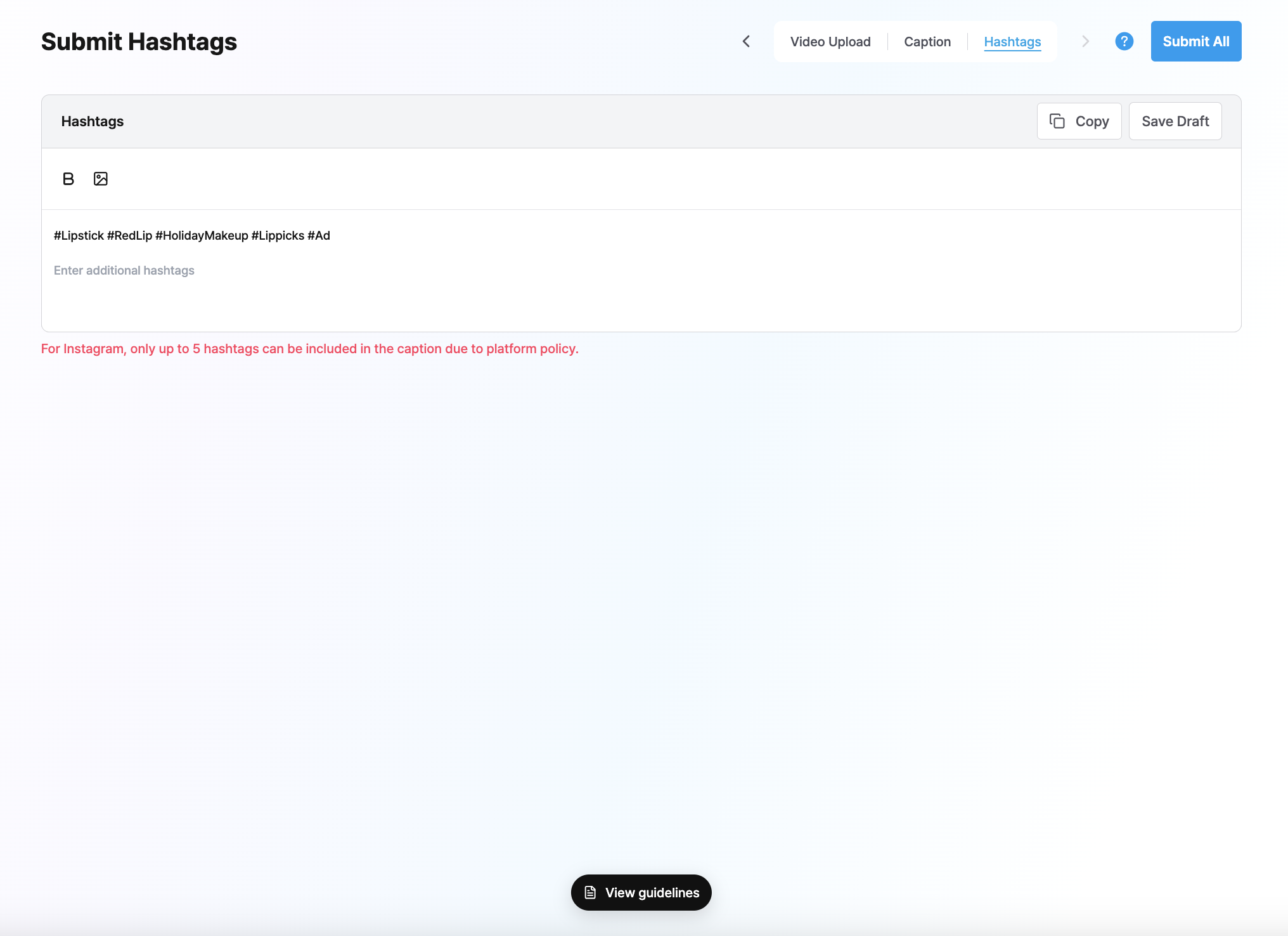
‼️ [Important] Saving a draft alone doesn't complete your submission, so be sure to press [Submit all] to complete it!
5️⃣ Check the brand's feedback and submit the revision
When you receive an email asking you to resubmit the script or the video / caption / hashtags, click the [Submit revision] button, check the feedback, and submit your revision.
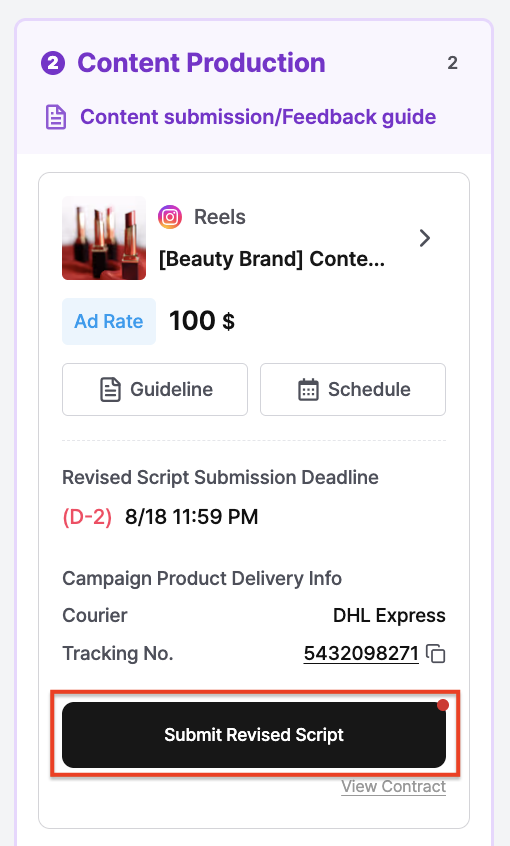
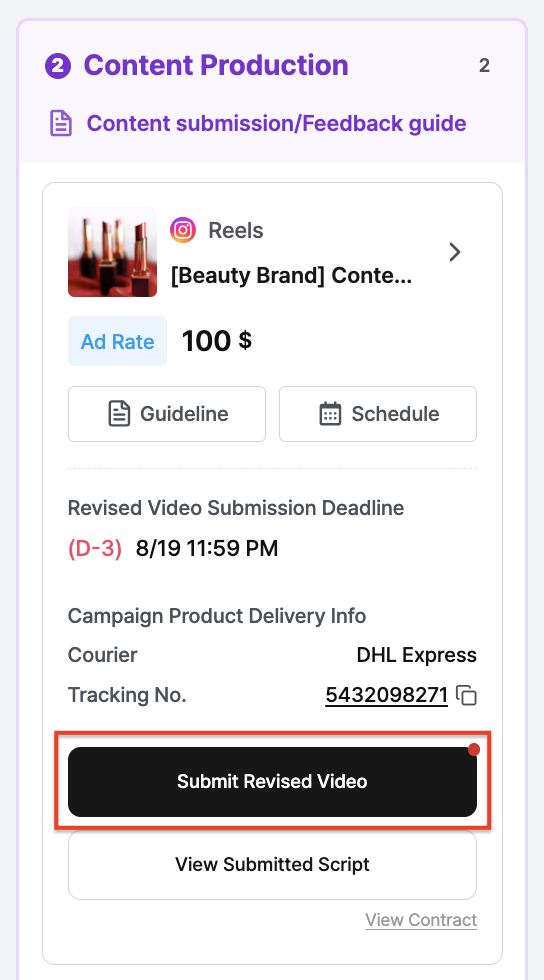
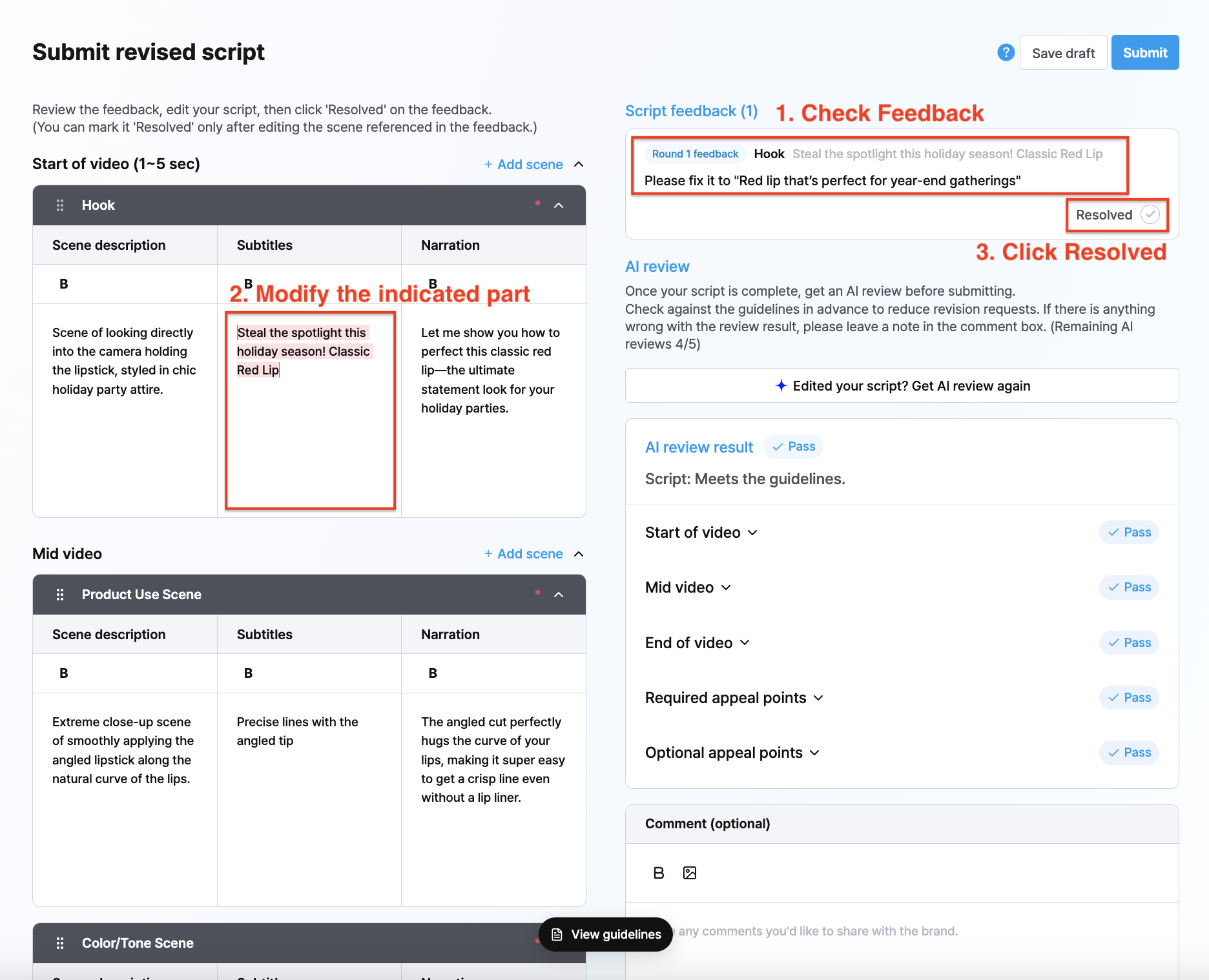
Submit the script revision
- After checking the feedback, revise the relevant part and check [Resolved].
- You must revise the relevant part of the feedback for it to be marked as resolved.
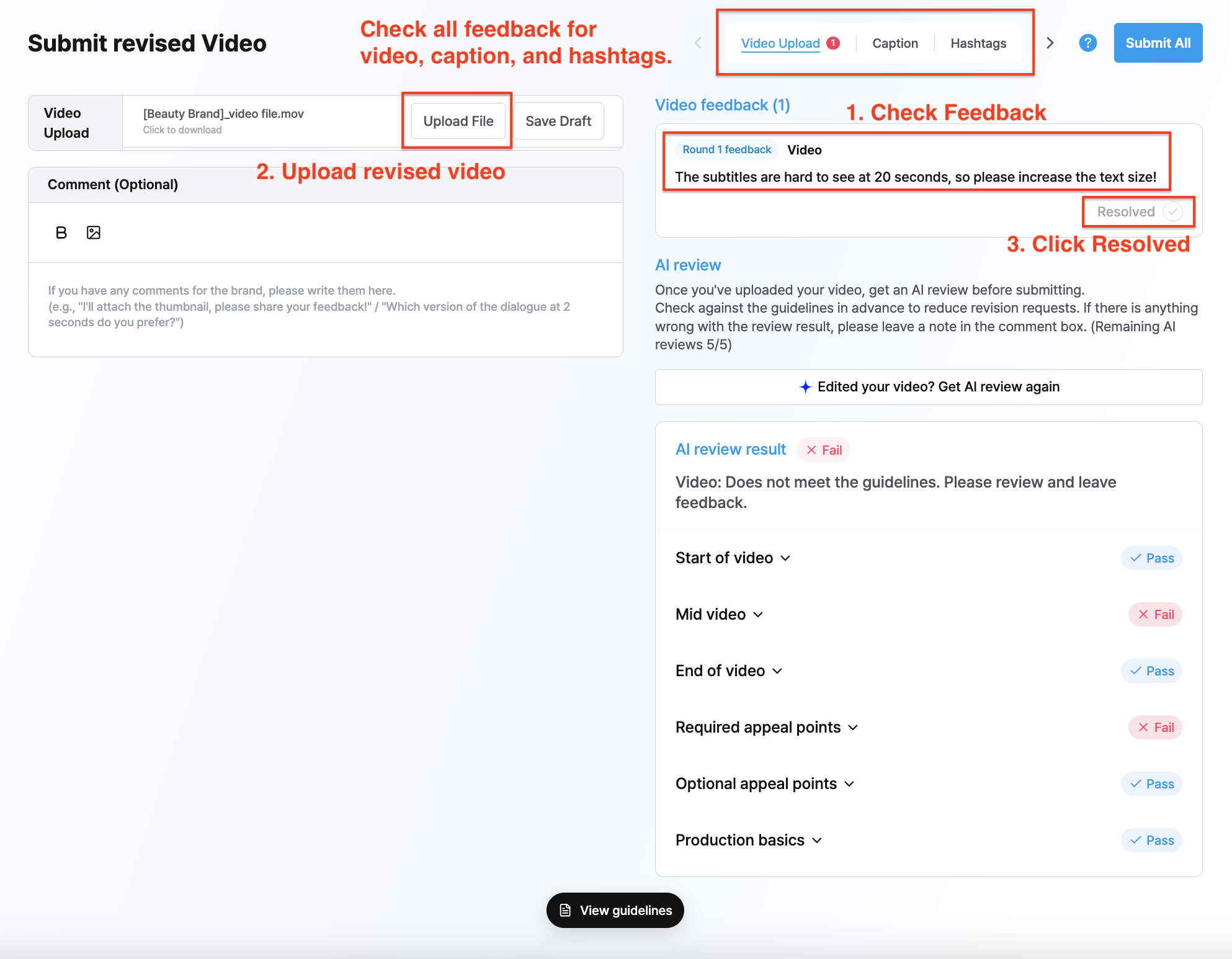
Submit the video / caption / hashtag revision
- Check all of the Video / Caption / Hashtags tabs to review the feedback.
- After checking the feedback, revise the relevant part and check [Resolved].
- For the video, you must upload a revised file different from the original draft for it to be marked as resolved.
6️⃣ Upload to your account
- Once the brand allows uploading (posting), we'll let you know the upload schedule by email.
- Please upload within the deadline, reflecting the upload conditions stated in the guideline.
‼️ If they aren't reflected, we'll request it again and your payment date will be delayed.
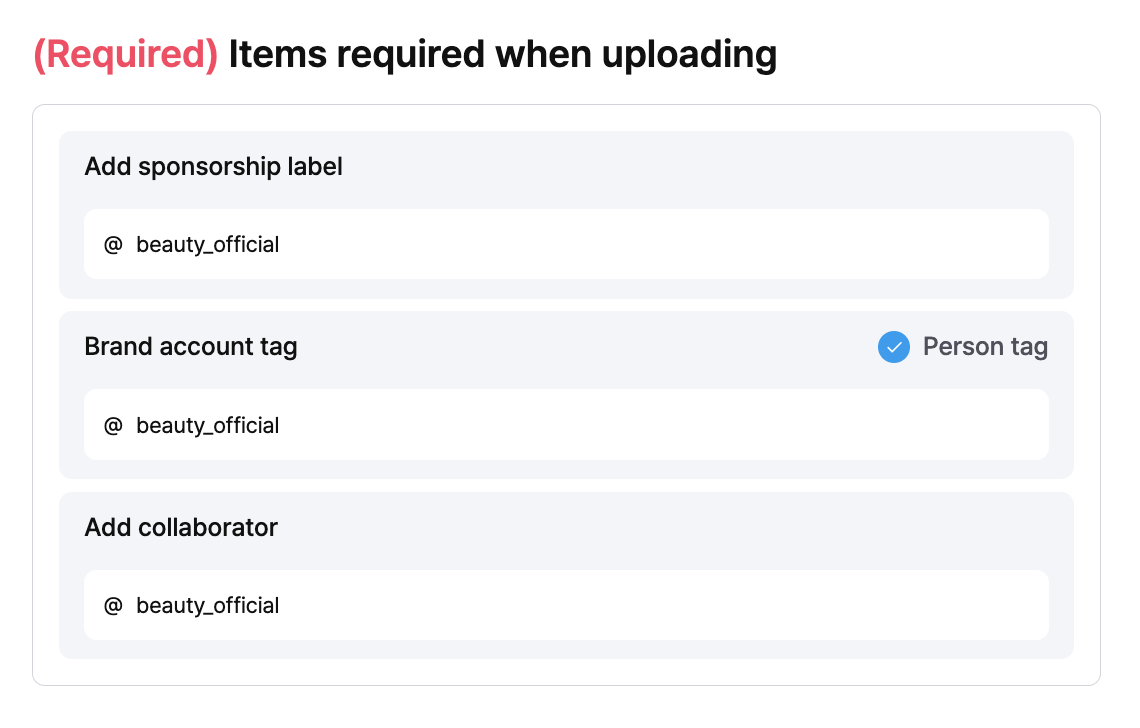
📌 [Required] Please reflect these when uploading your Reel Be sure to reflect the conditions below, found at the bottom of the content guideline. (Brand requests differ by campaign)
- ✅ Add the paid partnership label
- ✅ Tag the brand account
- ✅ Add a collaborator
※ If the guideline states any separate upload-related requests, please reflect those as well.
7️⃣ Submit the final deliverables
Submit them after uploading the content to your account. (The list of deliverables varies by campaign)
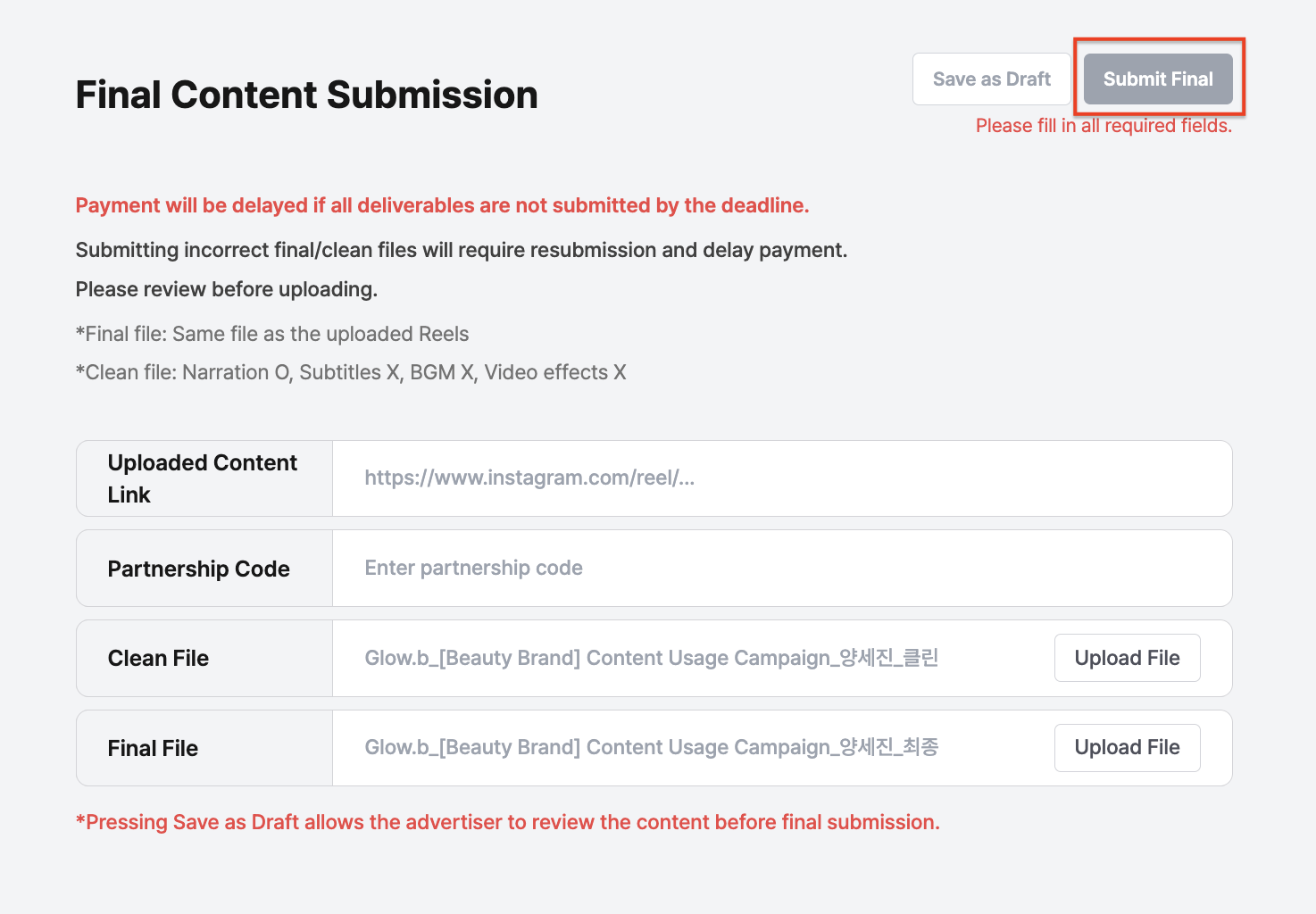
- Post link
- Partnership ad code
- Final version (the same video file you posted on your account)
- Clean version (from the final version: narration O, subtitles X, background music X, editing effects X) — if there's no narration, inserting narration in the clean version doesn't apply
[How to submit the final deliverables]
- Click the [Submit content] button on the campaign.
- After uploading your final content files, press the [Submit final] button to complete the submission.
Temporary submission: the advertiser can view your deliverables, but the final submission isn't complete (a cause of delayed payment) Final submission: once all deliverables are complete, press 'Submit final' and complete your submission within the deadline (payment on time)
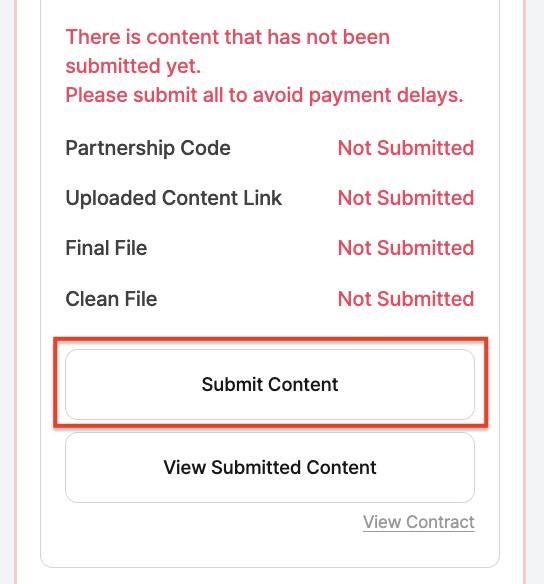
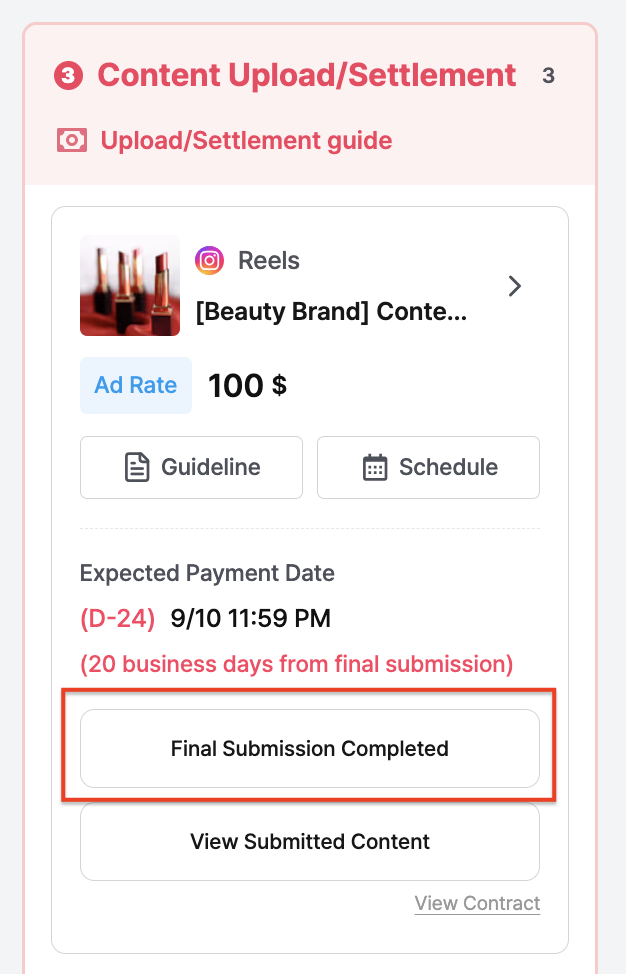
⭐️ Your campaign card must show 'Final content submitted' for the ad payment to be made normally.
8️⃣ Check the payment you received
- Payment is made on the Thursday after the 20th business day from the date of a proper final deliverable submission, using the payment details you entered in the contract.
- The date shown on the campaign is the 'expected payment date', so it may differ by about 1–3 days.
- The deposit is made under the name 'Byaht Co., Ltd.'
📌 Required filming conditions
Please be sure to reflect the conditions below when filming.
- Content for a 3-month secondary usage license
- High-quality video of 1080p or above
- If the content guideline includes 'insert narration' (doesn't apply if it isn't included)
- Clear narration without background noise
- Video without an editor watermark
- The product appears for 5 seconds or more — video with no copyright issues (BGM, fonts, sources, etc.)
- Video length of at least 20 seconds
- Bright, clear lighting
- Background music (use copyright-free music) and appropriate subtitles
- Recommended copyright-free music: YouTube Audio Library — free
🎬 Keep to the collaboration schedule
Please be sure to keep to the collaboration schedule.
If the schedule is delayed, it stays on record in the system and may put you at a disadvantage for future campaign selections. If it causes a serious disruption to the partner company's marketing schedule, payment may unavoidably not be made.
[How to check the collaboration schedule]
- Glow.B site → profile at the top right → Campaign dashboard → click the [Schedule] button on the campaign
- Glow.B site → the thumbnail of the campaign you were selected for → check it right away under 'Collaboration schedule'
- Reminders for the content submission date are sent by email and text message.
- If the company's shipping or review takes longer, the submission date for each step may be pushed back — no need to worry.
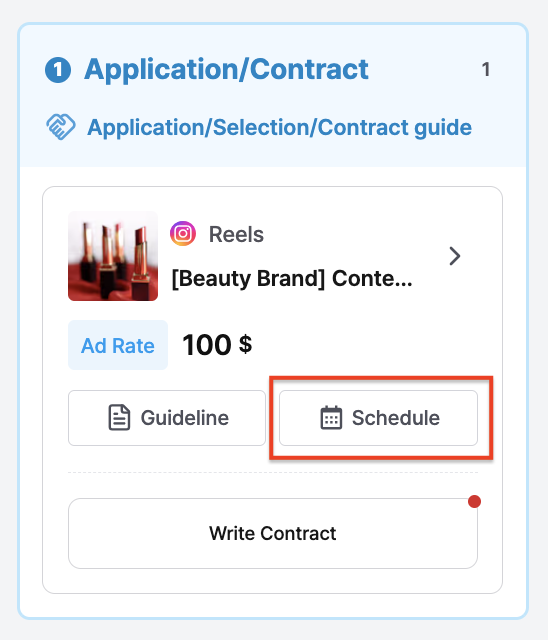
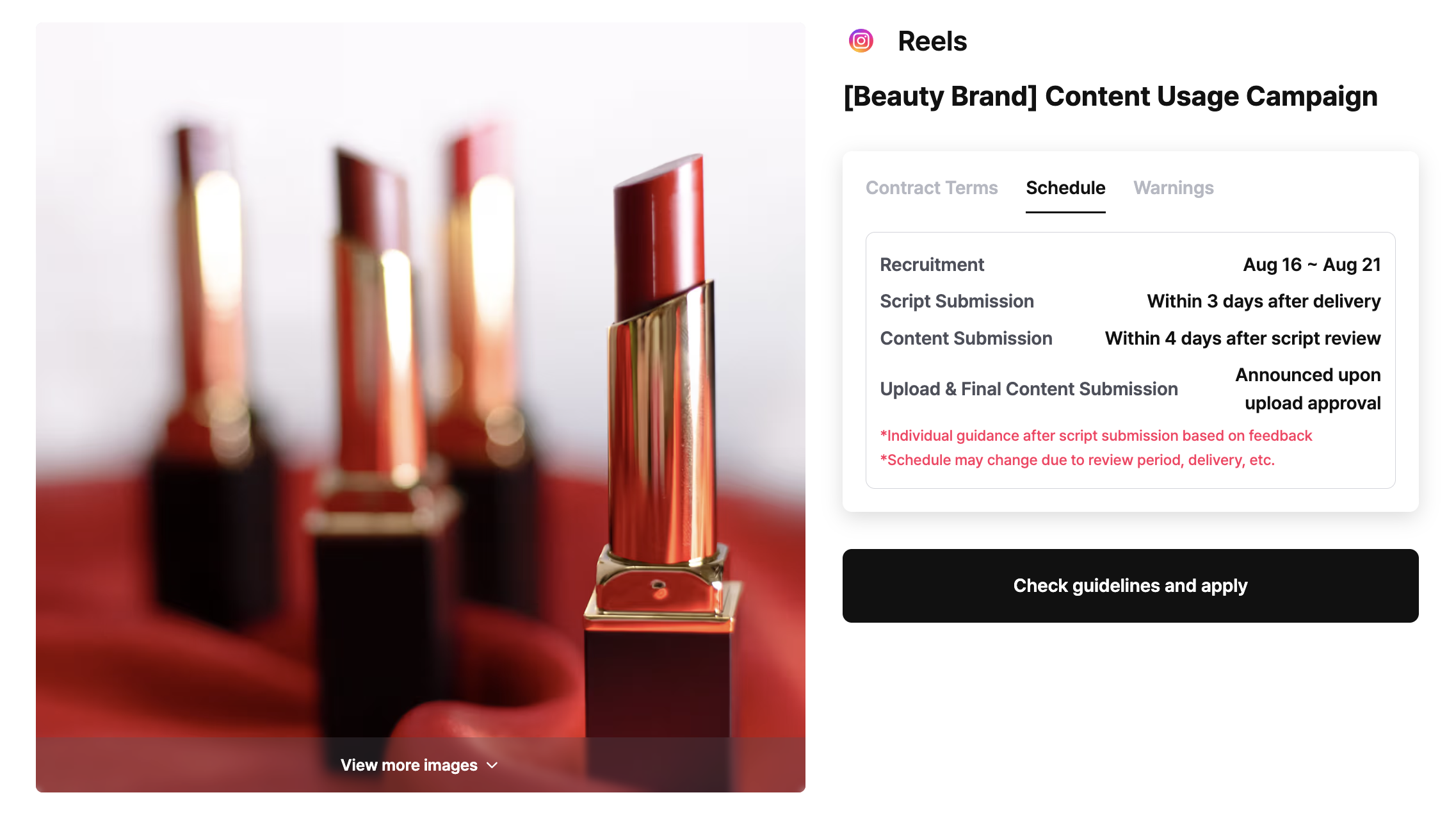
If you're curious about the detailed schedule, see the 📅 Schedule / Submission / Review / My info FAQ!
📄 How to check the deliverable types / number of reviews
1️⃣ Contract conditions Glow.B site → the thumbnail of the campaign you were selected for → you can check it right away under 'Contract conditions'.
2️⃣ Review
- 1-review campaign — only the video / caption / hashtags are reviewed
- 2-review campaign — 1 review of the script (video script) + 1 review of the deliverables (video / caption / hashtags)
[Video review guidance]
- If the guideline isn't reflected, or the video quality is poor (low resolution, hard-to-read subtitles, typos, cropping, etc.) — we'll give you feedback after the review. Reflecting this feedback counts as 1 video review.
- If the feedback above still isn't reflected, we may request it again.
- If the brand additionally requests re-recording or re-shooting beyond the content guideline and basic video quality, we'll pay an additional fee (an extra review is required).
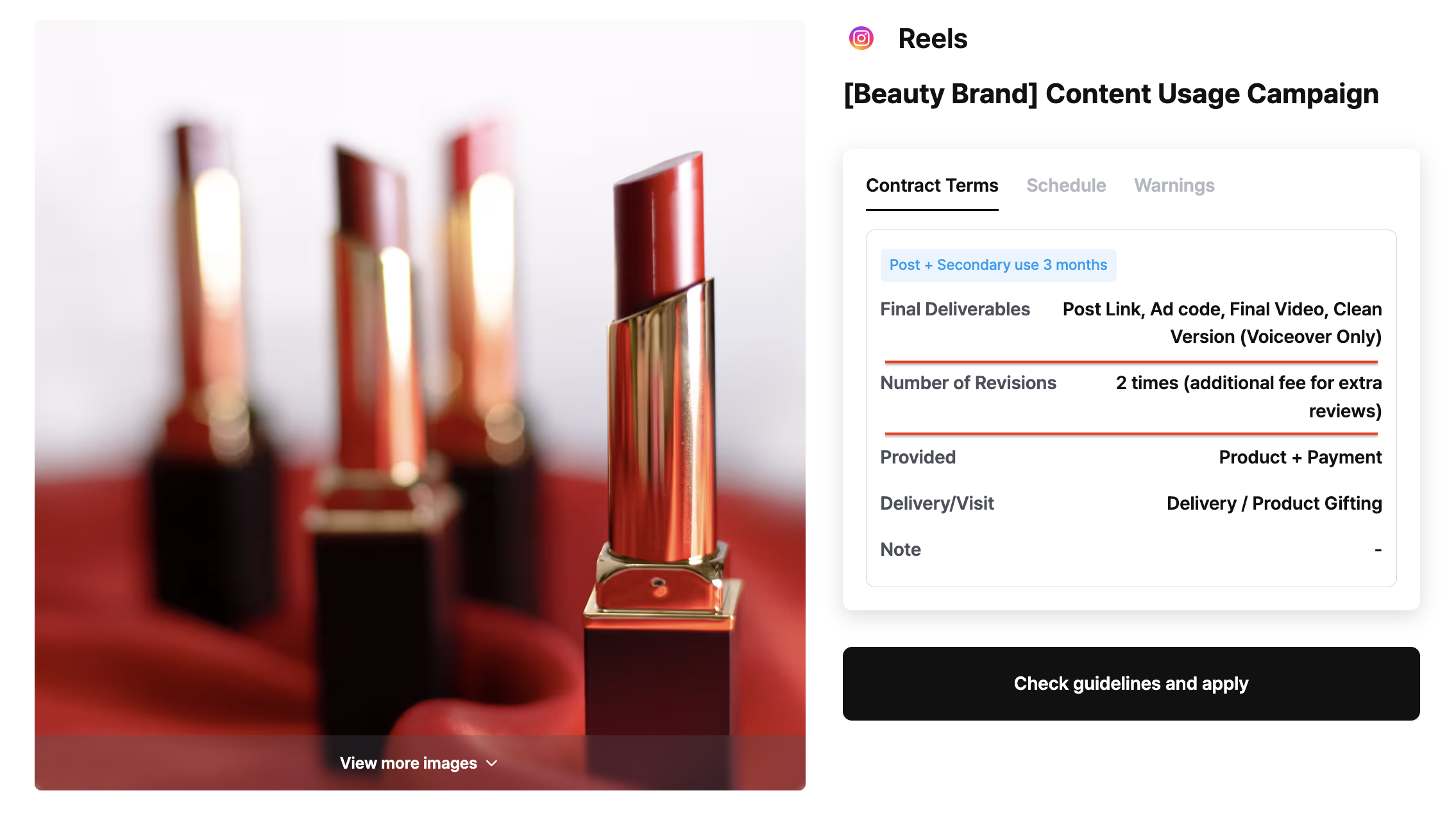
🔷 FAQ shortcuts
If you have any questions, check the FAQ page for each category.